
Access to the Portal das Finanças is essential for many administrative tasks in Portugal—checking tax messages, updating your details, filing returns, and more. So if you need to change your password (for security reasons) or recover it because you’ve forgotten it, it’s important to follow the correct official process to avoid delays or account blocks.
In this guide, we’ll show you:
how to change your Portal das Finanças password when you can still log in,
how to recover/reset your password if you can’t access your account (SMS, letter, or authentication.gov options), and
what to do if you run into issues such as 2-factor authentication (2FA), expired codes, or incorrect contact details.
Whether you’re using a temporary password for the first time or trying to regain access after being locked out, the steps below will help you get back into your account as quickly as possible.
Quick answer
If you can log in:
- Log in to the Portal das Finanças.
- In the search bar, type “Alterar dados de acesso” (Change access data).
- Select “Alterar Senha” (Change password).
- Enter your new password twice.
- Click “Alterar Dados de Acesso” to save.
If you can’t log in (forgot password):
- Click “Recuperar Senha” (Recover password).
- Choose the recovery method available to you (SMS / letter / authentication.gov).
- Set a new password and confirm.
Tip: Some users will also be asked for an SMS verification code (2-factor authentication).
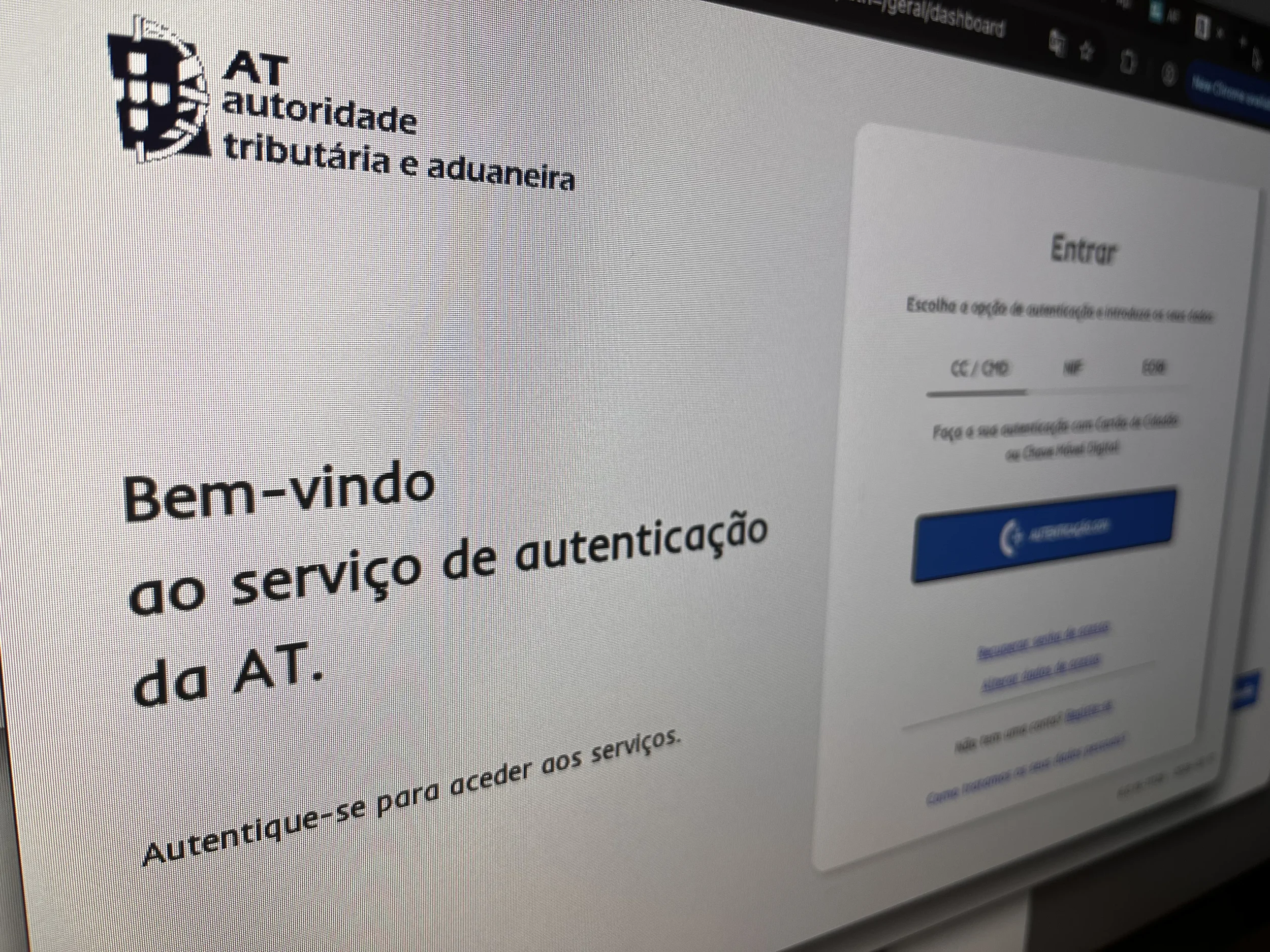
How to Change or Recover Your Portal das Finanças Password
| Situation | Best solution | What you need | Speed | Drawbacks / notes |
|---|---|---|---|---|
| You can log in normally | Change password via “Alterar dados de acesso” | NIF + current password (and possibly SMS code) | Fast (minutes) | Best option if you still have access |
| Forgot password, phone confirmed | Recover password by SMS (Recuperar Senha) | NIF + security question/answer + confirmed phone | Very fast (minutes) | SMS code typically expires quickly; phone must be the one registered |
| Forgot password, phone NOT confirmed | Recover password by letter to your fiscal address | NIF + security question/answer + correct fiscal address | Slow (days) | If your fiscal address is outdated, you may never receive the letter |
| You don’t know the security question | Request password cancellation by email, then re-register | Access to the email linked to your NIF + identity details | Slow (days) | You’ll typically receive a new password by letter after re-registration |
| 2FA enabled and you lost your phone number | Update contacts via autenticação.gov (Citizen Card / Digital Mobile Key) | Citizen Card or Digital Mobile Key access | Medium | May require setting up Digital Mobile Key first |
Note: available options can vary depending on your account setup and contact verification status on the Portal das Finanças.
Short on time or applying from abroad?
We can handle your NIF request.
Before you start: what you’ll need
Your NIF (Portuguese Tax Number)
Your current Portal password (or a temporary one)
Access to your confirmed phone number (if you use SMS / 2FA)
Your fiscal address must be correct (password letters go there)
Option A — Change your password (when you CAN log in)
Step 1 — Log in
Go to Portal das Finanças and log in with:
NIF
Current password
(Some users will also be prompted for an SMS code if 2FA applies—more on that below.)

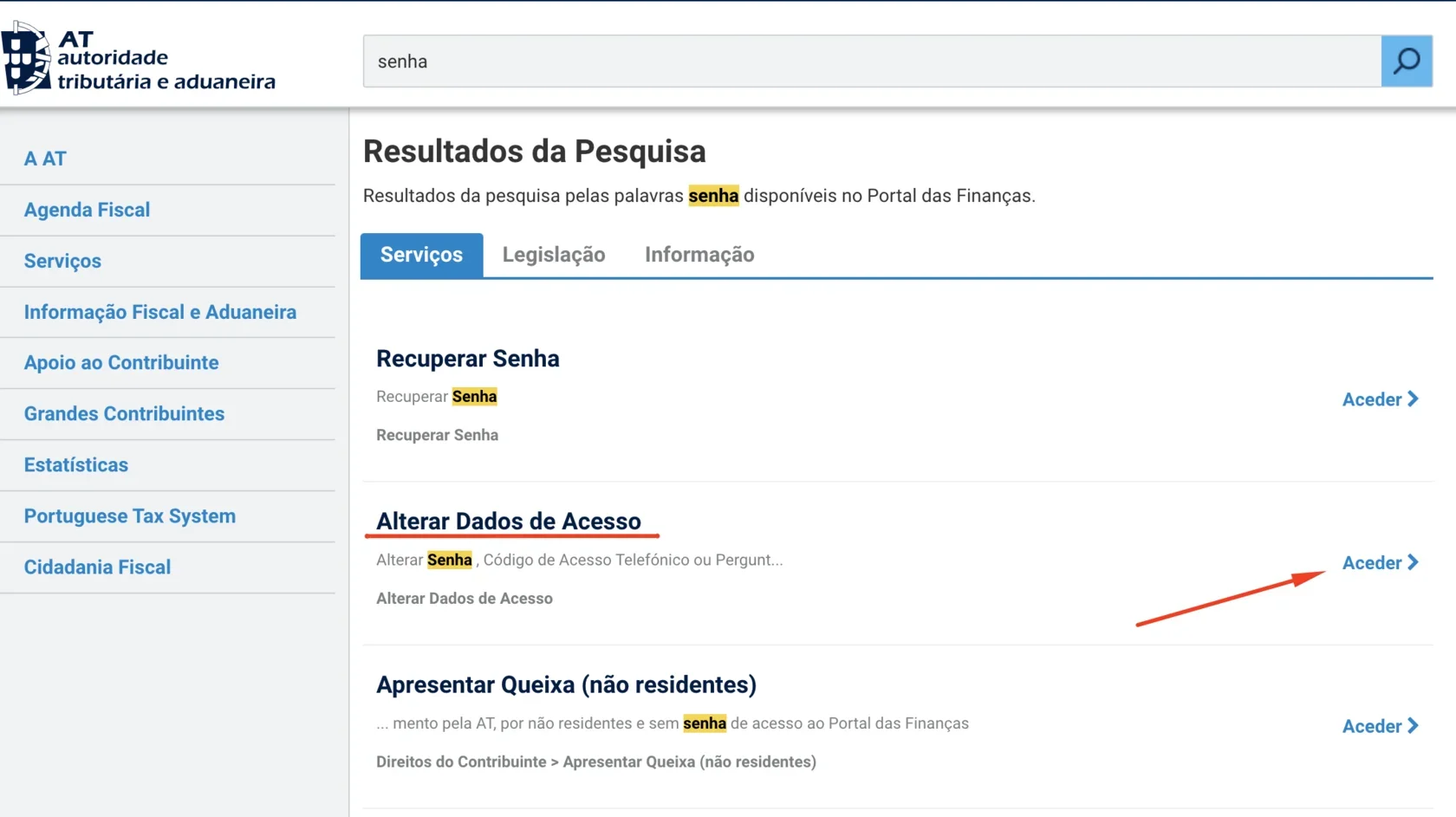
Step 2 — Open “Alterar Dados de Acesso”
In the portal search bar, type “alterar dados de acesso” and open the corresponding page (Change access data).
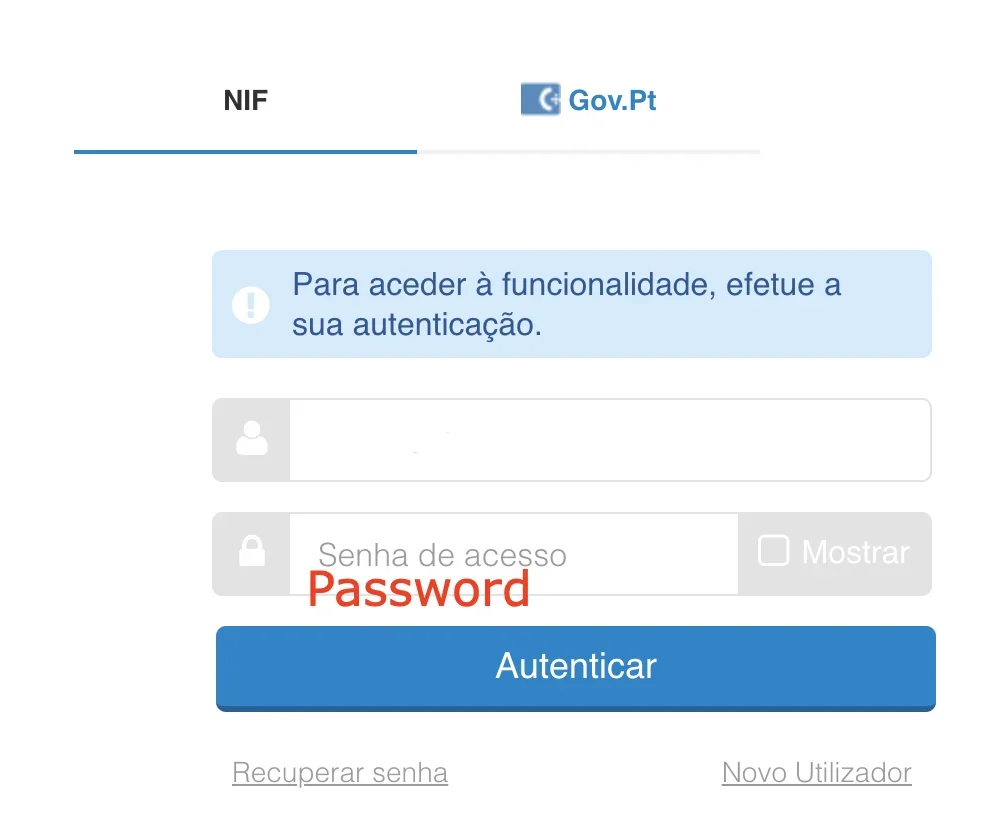
Step 3 — Authenticate again
You may be prompted to re-enter your password / authenticate again before changes are allowed.
Step 4 — Tick “Alterar Senha”
On the access data page:
Tick the checkbox “Alterar Senha” (Change password).
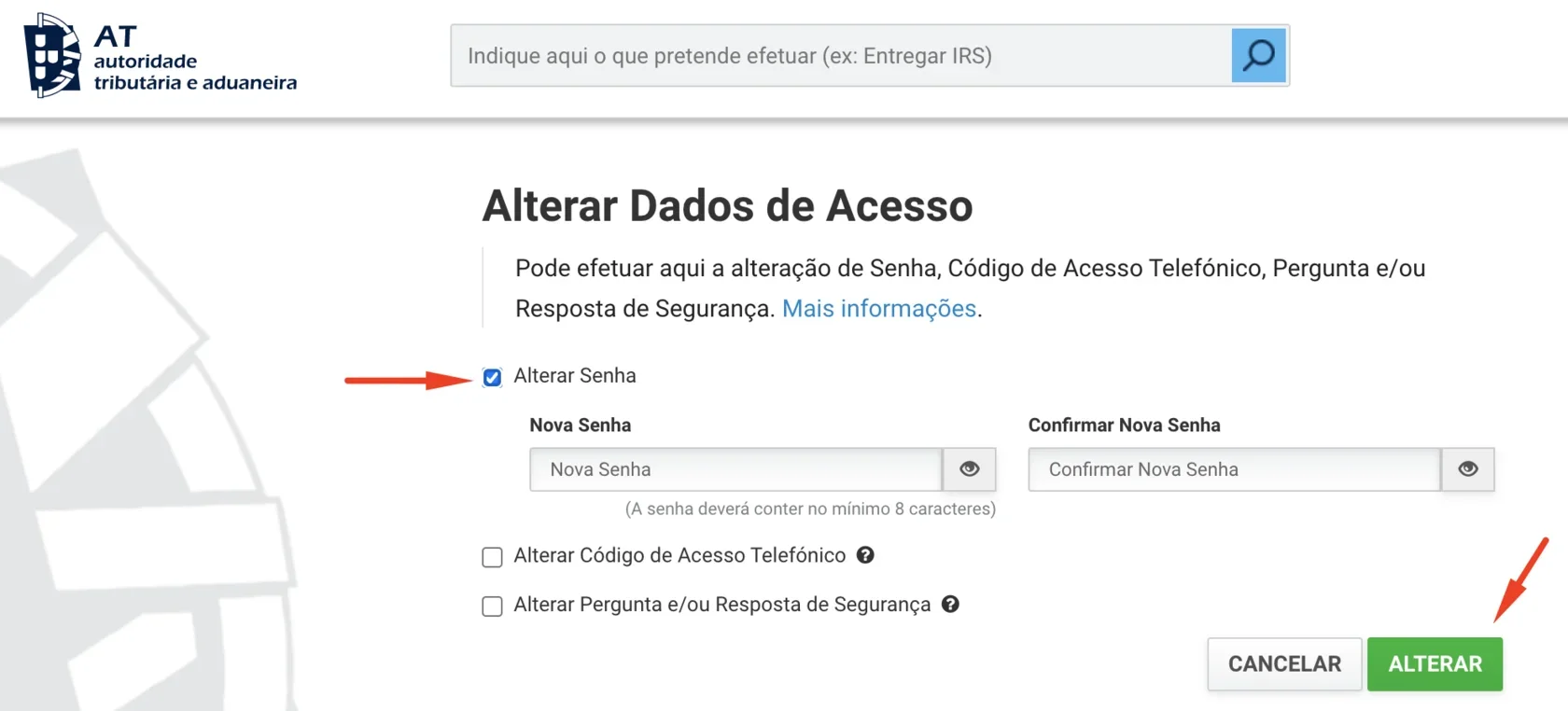
Step 5 — Set your new password
Enter your new password twice and save the changes.
Password rules can vary, but the portal commonly enforces strong passwords (length + uppercase + lowercase + number + special character).
Your new access password must contain:
at least 8 characters;
at least one character from each of the following groups:
uppercase letters (A–Z);
lowercase letters (a–z);
numbers (0–9); and
one special character (for example: /, *, #, %).
Passwords made up only of repetitive patterns are not accepted.
When changing your password, please pay close attention to your computer’s keyboard settings—especially whether the Caps Lock key is enabled—since the characters you type are not visible.
Step 6 — Save
Click the button to confirm/save (commonly shown as “Alterar Dados de Acesso”).
✅ Done — your new password is now active.
Option B — Recover your password (when you CAN’T log in)
If you don’t know your password (or your account is blocked), use “Recuperar Senha” (Recover password). The Tax Authority explains multiple recovery paths.
Step 1 — Open “Recuperar Senha”
On the Portal das Finanças login page, choose “Recuperar Senha”, or search for “Recuperar senha” in the portal search bar.
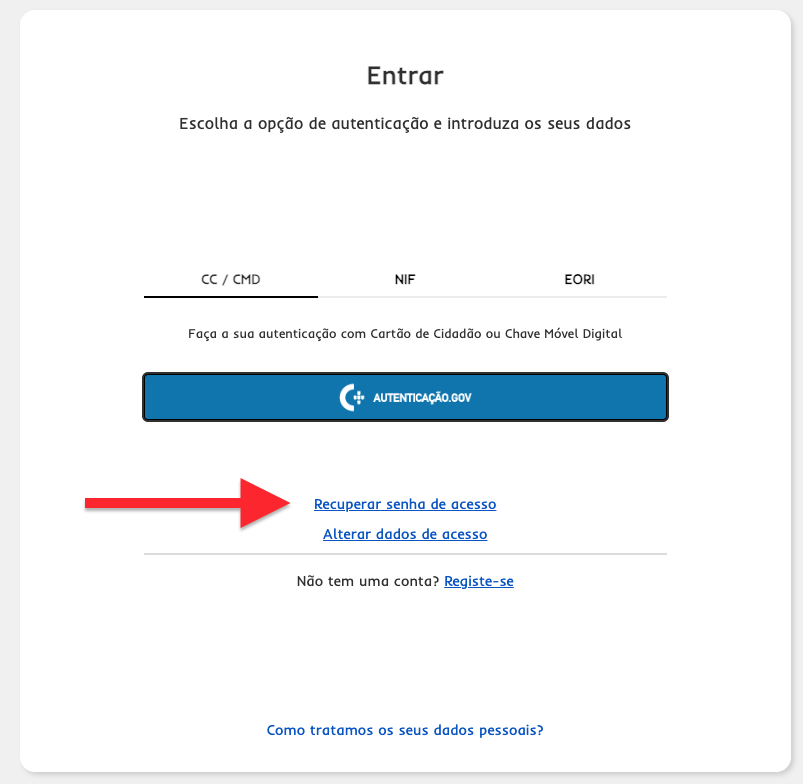
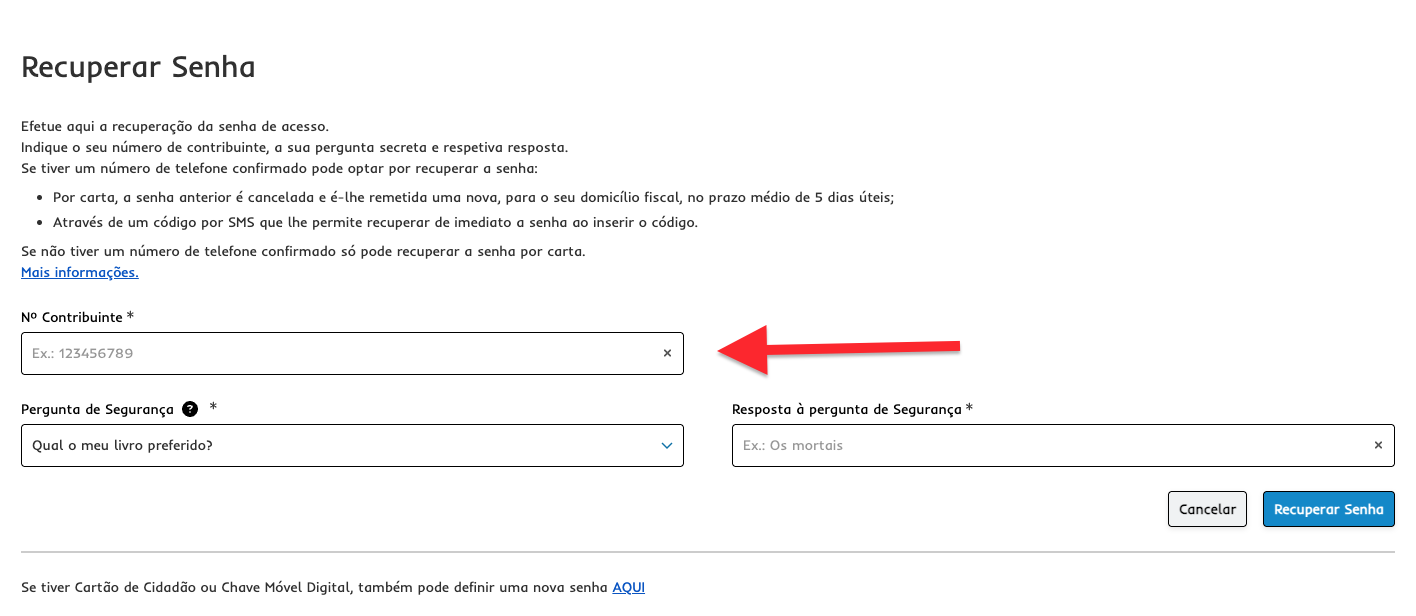
Step 2 — Choose the recovery method that matches your situation
Method 1 — Security question (and phone confirmed): SMS (fastest)
If your phone number is confirmed (“fiabilizado”), you may recover your password immediately by SMS:
You’ll receive a 6-digit code
You typically have 5 minutes to enter it
Then you can choose a new password
Method 2 — Security question (no confirmed phone): Letter
If you don’t have a confirmed phone, recovery is done by letter:
Your previous password is cancelled
A new password is sent to your fiscal address
Average delivery: ~5 business days
Method 3 — You don’t know the security question, but you know the registered email
If you don’t know the security question/answer, the Tax Authority instructs you to email portal-senhas@at.gov.pt from the email address associated with your NIF, with a specific subject and details (NIF, full name, fiscal address). After confirmation, you must register again and wait for a new password letter (average ~5 business days).
Method 4 — Citizen Card / Digital Mobile Key (autenticação.gov.pt)
The Tax Authority also describes password reset through autenticação.gov.pt using:
Citizen Card, or
Chave Móvel Digital (Digital Mobile Key)
This route can allow you to set a new password directly.
Important: 2-Factor Authentication (2FA) may be enabled
Portugal has been rolling out 2FA for Portal das Finanças access. For some individual taxpayers, logging in requires:
NIF + password, plus
A verification code sent by SMS
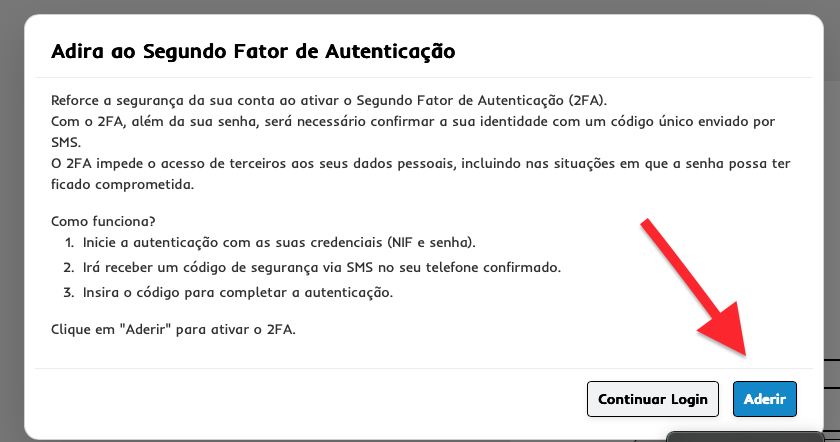
You can activate 2FA in the Portal das Finanças under Services → Taxpayer Authentication → Access Details → Second Authentication Factor (2FA).
If you already have a confirmed phone number, select Join here → Start enrolment. You will automatically receive an SMS code and must enter it in the SMS Code field.
If you don’t have a confirmed contact, enter your phone number and select Start enrolment, then confirm by clicking Continue. You will receive an SMS code immediately.
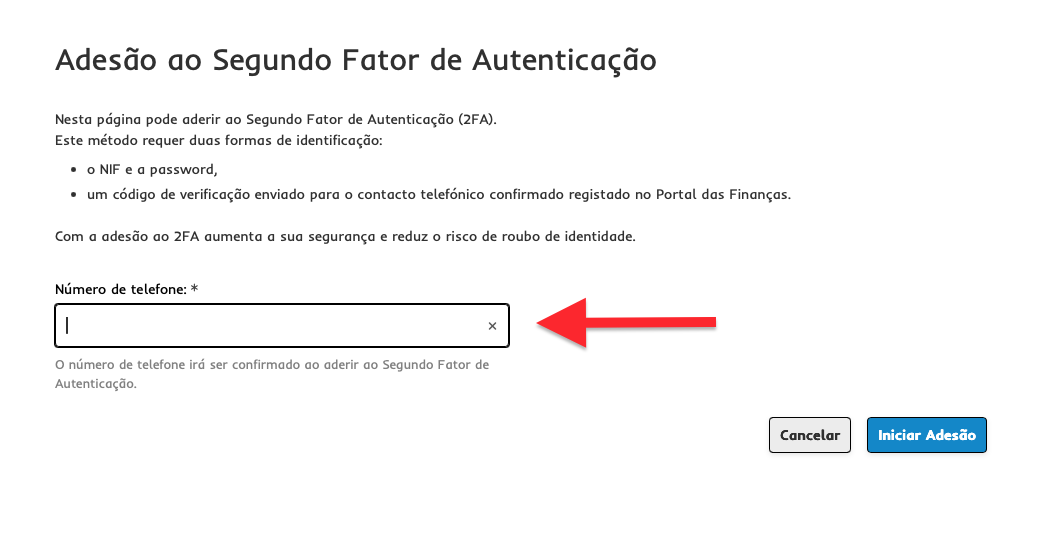
Enter the code sent to your phone — it is valid for 5 minutes. After the code is accepted, you will see a confirmation message that 2FA is now active.
If the portal says the code is invalid, try entering the same code again. You have up to 5 attempts; after that, access may be blocked for 1 hour.
SMS validation code when logging in
Once 2FA is enabled, every time you sign in to the Portal das Finanças you will receive a one-time SMS code. This code:
can be used only once,
is valid for 5 minutes, and
can be re-sent if you don’t receive it.
If the code is entered incorrectly, access may be suspended for 1 hour. After this period, you must restart the login process from the beginning.
If you lose access to the phone number used for 2FA, the government notes you may need to update contact details via authentication.gov (Citizen Card / Digital Mobile Key), or cancel access and re-register.
Troubleshooting (common issues)
“I didn’t receive the password letter”
Check that your fiscal address is correct (letters are sent to the registered fiscal address).
If your address is outdated, recovery may fail or go to the wrong place.
“SMS code doesn’t arrive”
Ensure your phone number is confirmed on the portal (SMS recovery/2FA depends on this).
If you changed phone numbers, you may need to update contact details first (sometimes via authentication.gov).
“I don’t know my security question”
Use the email procedure to portal-senhas@at.gov.pt as described by the Tax Authority.
FAQ
Can I change my Portal das Finanças password online?
Yes. If you can log in, you can change your password in the “Alterar dados de acesso” (Change access data) area.
What if I forgot my Portal das Finanças password?
Use “Recuperar Senha” (Recover password). Depending on your setup, you may recover by SMS (fast), by letter to your fiscal address, or via authentication.gov (Citizen Card/Digital Mobile Key).
How long does password recovery take?
If you can recover by SMS, it can be immediate. If recovery is done by letter, delivery depends on post, but the official guidance mentions an average of around 5 business days.
I don’t know my security question — what can I do?
If you don’t know your security question/answer but you have access to the email registered with your NIF, you can request cancellation of your password by email and then re-register to receive a new password by post.
Do I need an SMS code to log in?
Some taxpayers must use 2-factor authentication (2FA). In that case, an SMS verification code is required in addition to your NIF and password.
Useful links
Portal das Finanças — Login page (Portal das Finanças) https://www.portaldasfinancas.gov.pt/
Portal das Finanças — Password recovery page (“Recuperar Senha”) https://info.portaldasfinancas.gov.pt/pt/apoio_contribuinte/Pages/Recuperar_senha.aspx
Portal das Finanças (FAQ) — Recover password (SMS / letter / email procedure) – FAQ 00245 https://info.portaldasfinancas.gov.pt/pt/apoio_contribuinte/questoes_frequentes/Pages/faqs-00245.aspx
Official (news) — 2-factor authentication (2FA) on Portal das Finanças https://www2.gov.pt/en/noticias/acesso-ao-portal-das-financas-com-autenticacao-em-dois-passos
Official — authentication.gov (Citizen Card / Digital Mobile Key) https://www.autenticacao.gov.pt/
Official — Chave Móvel Digital (Digital Mobile Key) https://www.autenticacao.gov.pt/chave-movel-digital